A step by step tutorial on how to upload custon images to juxt! You will need the HB app store installed
Post
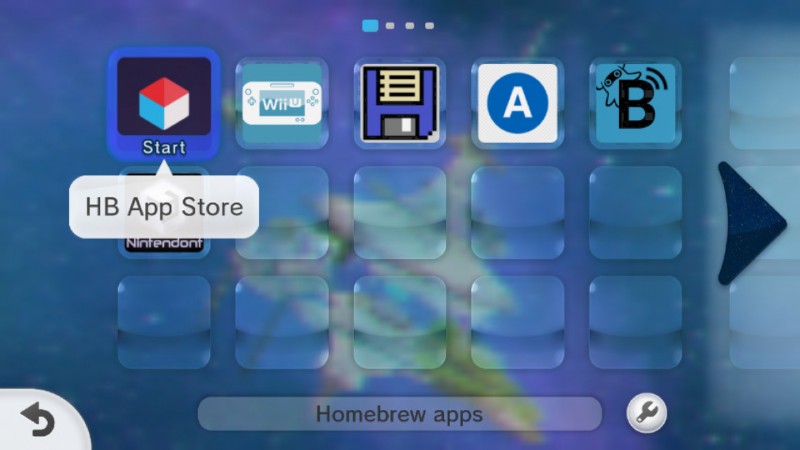
On your Wii U Go to the HB appstore. Once inside, Search for a homebrew app called "WiiU-Shell" Click on the page and download the homebrew
Now, turn off your Wii U and plug your SD card into your computer
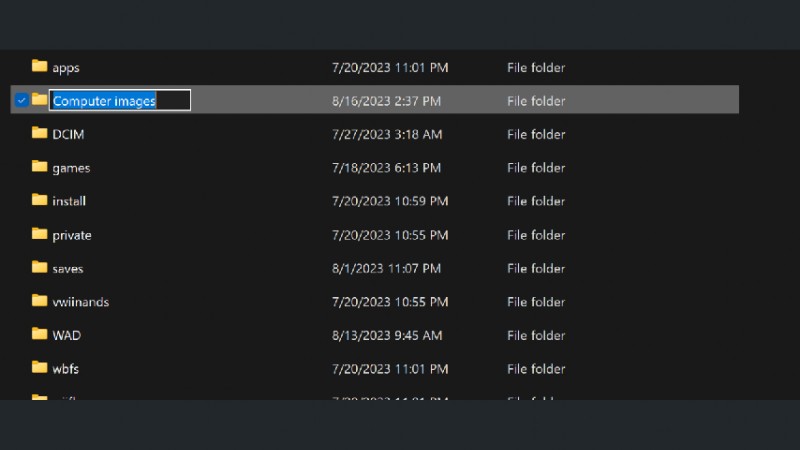
Create a folder on the root of your sd card this folder is where you will be placing your images
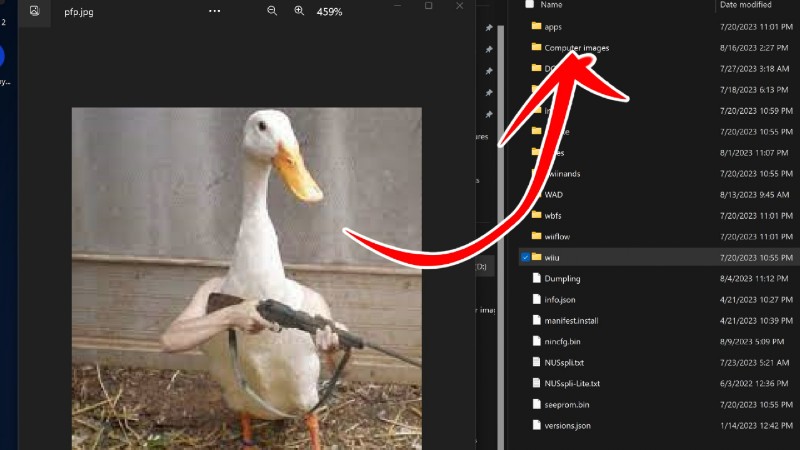
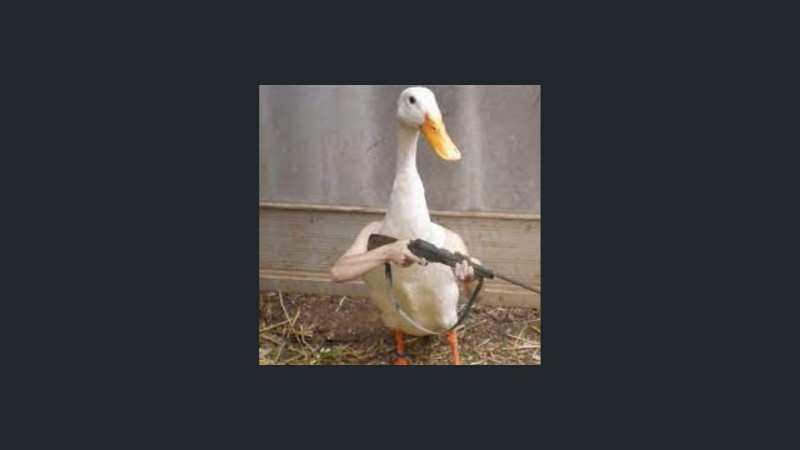
Place your .png, .jpg, .gif, or .bmp image in the folder you just created here im placing a duck with a shotgun into the folder
After you do that, eject your sd card from your computer, put it into the wii u and boot up aroma
You will see Wii U shell on your menu, open it
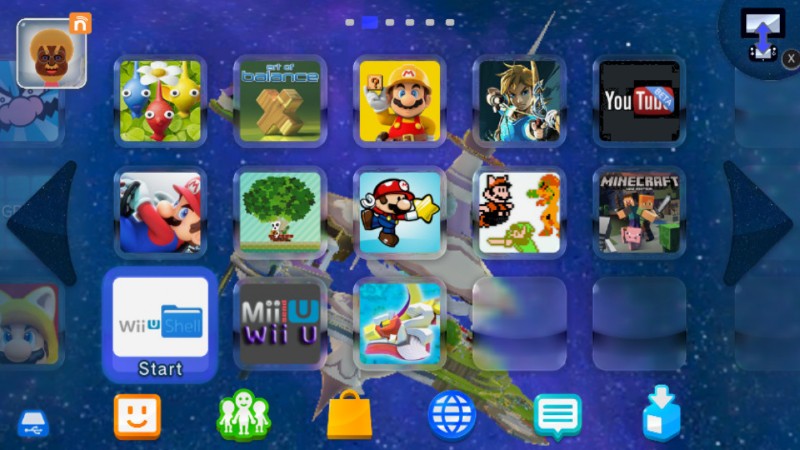
Navigate to the folder that youve put your image in usding the D-pad
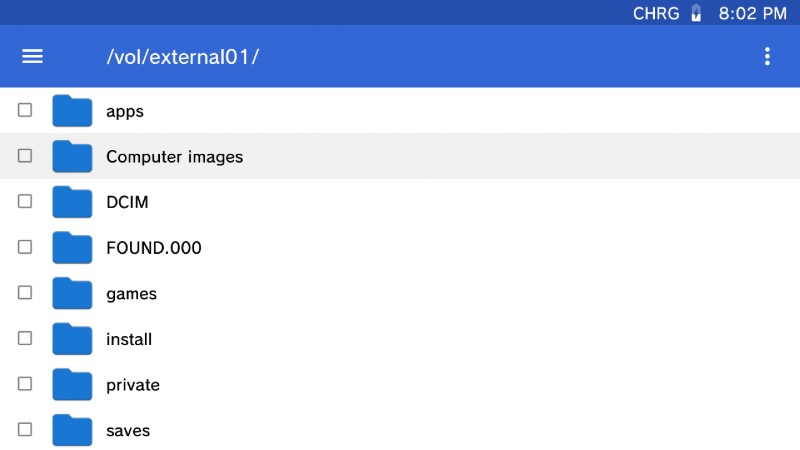
Then open the folder by pressing A
You will see the file name for your image. Press A to view the image, use the left joystick to zoom the image until it fits the screen
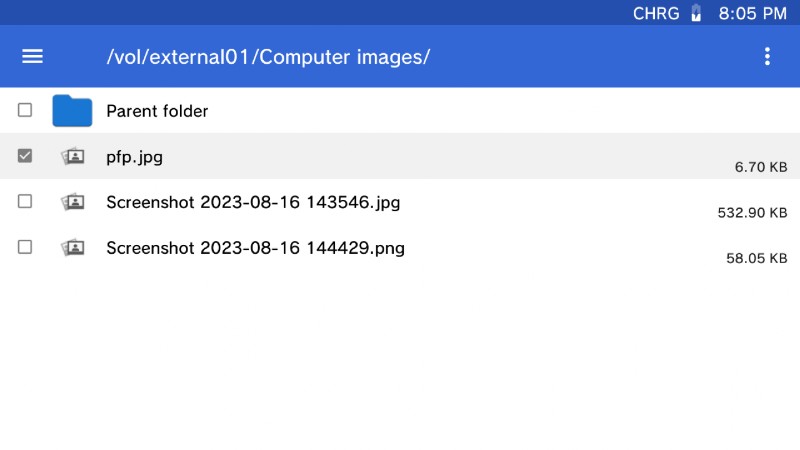
Once the image fits the screen, press the home button and open miiverse Create a post, then put your screenshot into your post this is basically how you put your game screenshots into miiverse, instead were posting a custom image
Click on post Congrats! youve just posted your own image to juxt! (ignore the borders lol)
Please try not to post images that would break the terms of service. That would get your console banned from using juxt ever again!
Yo that theme tho